
How to repair/reinstall VCRedist?
Microsoft Visual C++ Redistributable
If you have experienced any of these issues:
- crash after you spawn in-game;
- stuck after the Northwood Studios logo appears;
- game not starting due to an installation script is running error;
- stuck after the Northwood Studios logo appears;
or any unmentioned issues listed above, then try out this guide!
Resolution
Installing/Repairing VCRedist (2015-2022)
- Download the installer:
- Run the installer:
- double-click the downloaded
.exefile;- a setup window will now appear.
- double-click the downloaded
- Accept the Microsoft Software License Terms:
- check the "I agree to the license terms and conditions" box;
- then click the "Install"/"Repair"button.
- then click the "Install"/"Repair"button.
- check the "I agree to the license terms and conditions" box;
- Wait for the installation to end:
- the installer will extract and install the necessary files;
- this usually takes less than a minute.
- the installer will extract and install the necessary files;
- Restart your computer.
Due to our minimum requirements, this guide is directed towards Windows 10 21H1+/11, x64 only. If you are using a 32-bit operating system, you will need to upgrade it!
How to handle a "Setup Failed" error?
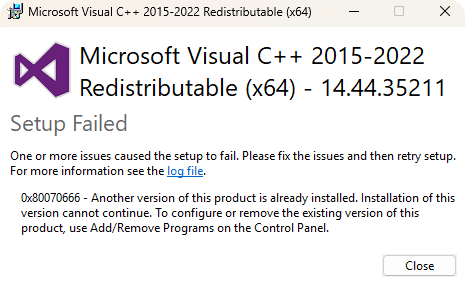
- Proceed to the uninstallation page:
- use the Windows search bar and type "Add or Remove Programs".
- use the Windows search bar and type "Add or Remove Programs".
- Look for the "Microsoft Visual C++ Redistributable" software packages:
- then click on the three dots next to the
.exeand then click "Uninstall".
- then click on the three dots next to the
- Try installing/repairing VCRedist again.
If you have encountered any problems with this guide, feel free to contact us by creating a ticket in the #technical-support channel.
No comments to display
No comments to display