
Disabling Startup Apps
Some apps on your computer start up before you can log in to your computer. You may notice this when you log in, as multiple apps may pop up. These apps can slow down your computer and make it difficult to play the game. Disabling these start up apps and trying to play without opening any other apps may help.
Method 1: Using Task Manager
For Windows 10/11 Devices
- Press the Windows Key and Search for Task Manager in the Search bar.
- Click on Task Manager and click Open.
- Once in Task Manager, go to the Side bar.
- Click on Start up Apps
- Click on Status and make sure the arrow is pointing down.
- Disable any apps that say "Enabled" by clicking on them and clicking disable.
- After all are disabled, restart you PC and only open SCP:SL and try it out.
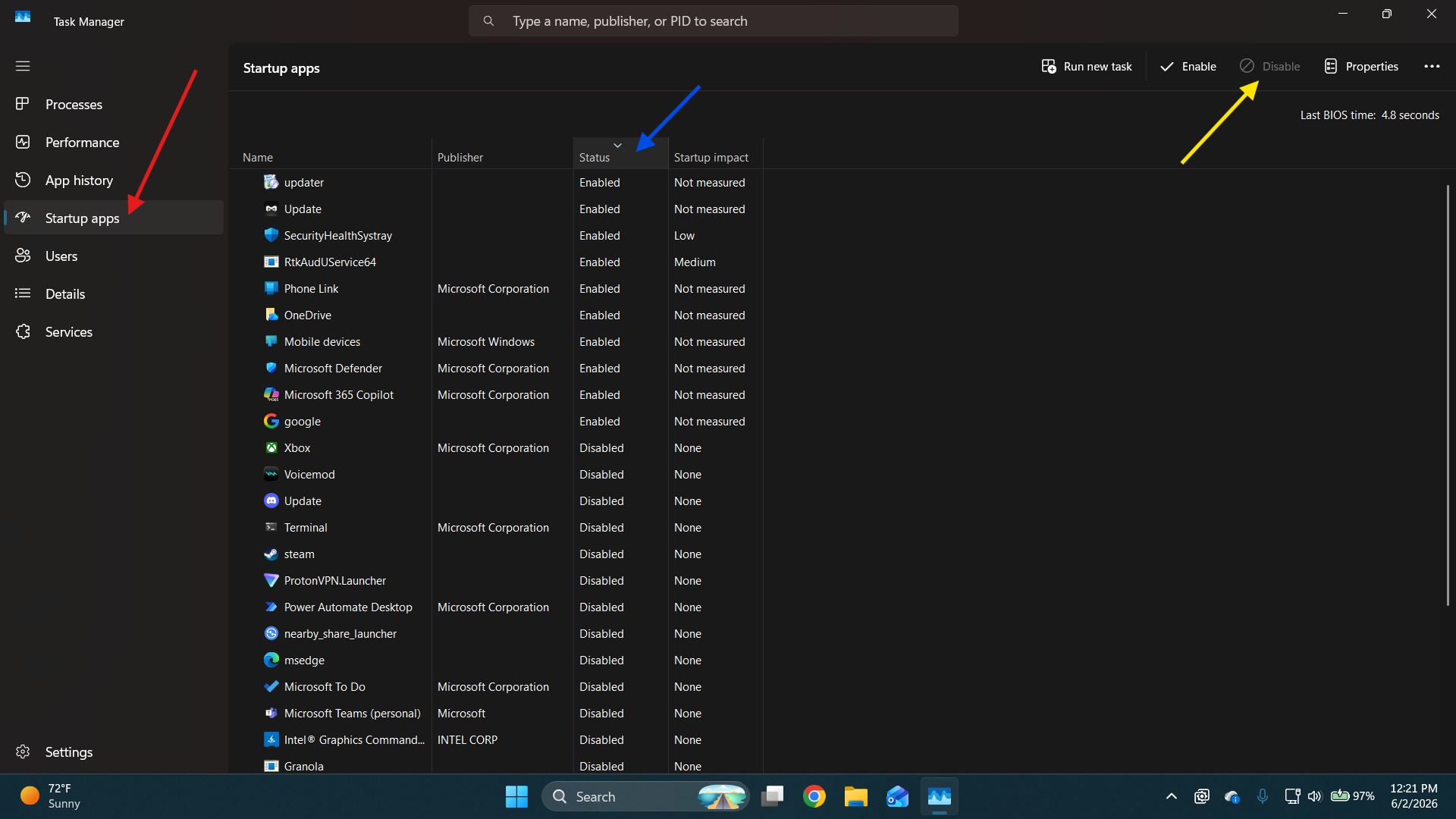
(If the disabled button is greyed out after you click on an app, that means it's already disabled)
Method 2: Windows Settings
Made for Windows 11 Devices, settings may be similar in Windows 10.
- Open Settings by pressing the Windows Button + I
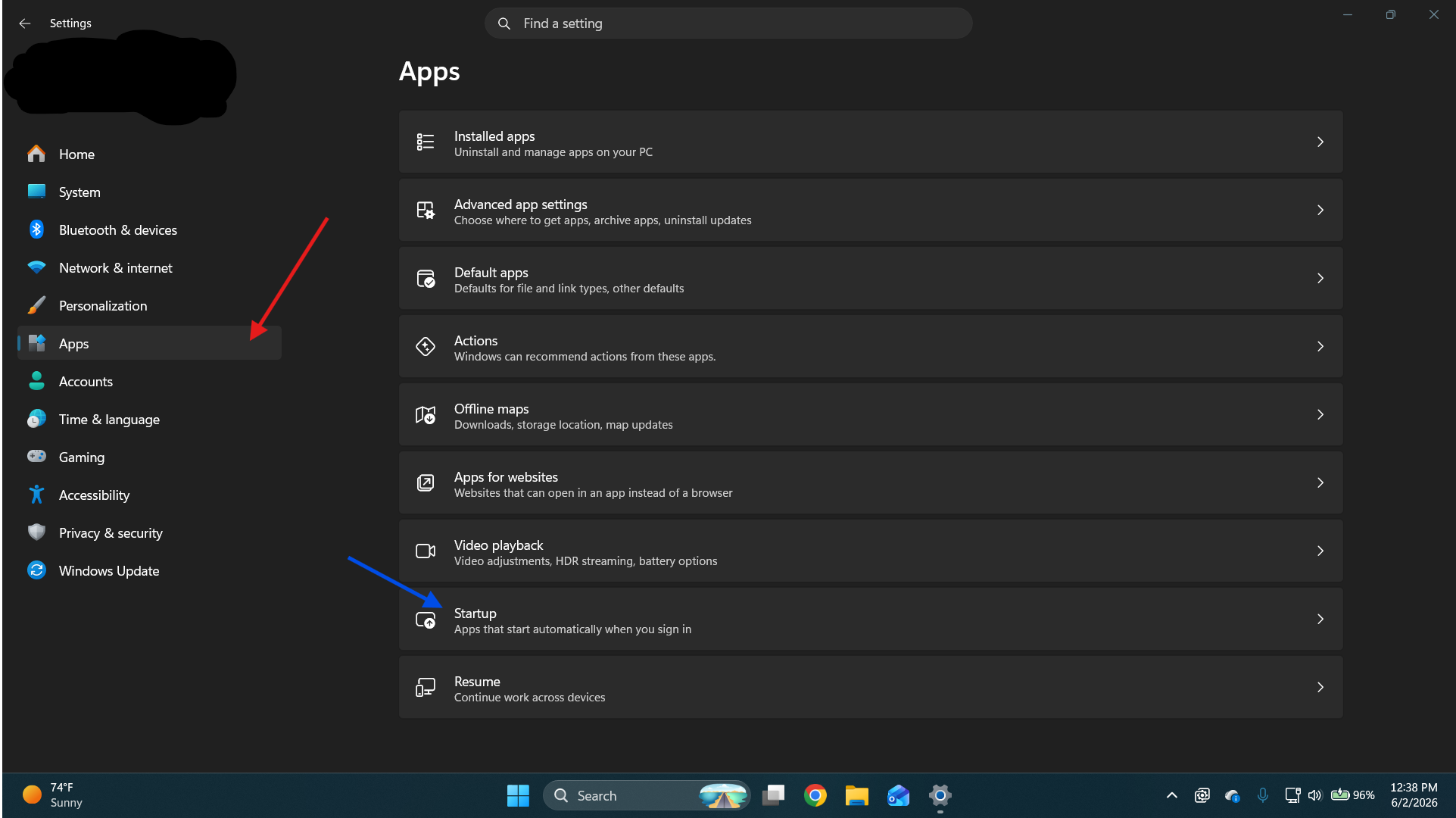
- On the side bar, click Apps.
- Locate Startup in the Apps section
- Go down and find each app that says On and click it to turn it Off.
- After every app is disabled, restart your device.
- Once the device restarts, only open SCP:SL
Reminder: After doing one of the methods, you will need to restart your computer. This will not work until your device is restarted. Once you restart your device, you will need to ONLY open SCP:SL
No comments to display
No comments to display