
Server Name and Info Customization Guide
Introduction
By default, without any customization, the server name and description are plain white text with no formatting. However, good news is that they can be customized, thanks to the Unity Rich Text system. This document serves as a brief overview to the different options that are available to customize both the server name and description, as well as a couple tools to help aid making these.
Tags
ServerGameplay NameConfiguration Options
The name of your server is located in config_gameplay.txt onwith linethe 2:variable server_name:
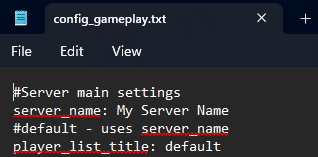
By default, the server name in the player list will also use the same name from line 2,server_name, however you may set a custom name to appear there.there by using player_list_title.
Customization Options
Color
You're also able to colorize text, with either a hex code or a color using <color=> and </color> tags.TextThe inlist SCP:of Secretcolors Laboratory,is suchbelow, however, you can additionally use any hex code you want as Serverwell.
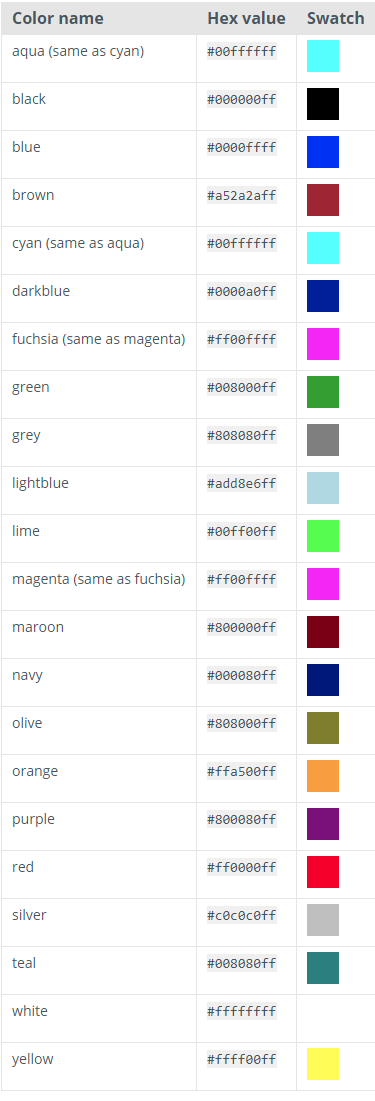
For Serverusing Info,the supportcolor Richnames, Textyou (Unity),can whichsimply many server hosters use to customize their server names.Here are a few examples:Bold TextThis <b>word</b> is bold.<b> - Bold tag, indicates to Unity what to doopen with the textcolor nexttag as so, <color=green> and then close it off with the closing tag, </color>.
For using hex codes you can also open with the color tag, but instead replace the color name with the hex code like so, <color=#ff0000>, and then close out with the closing tag, </color>.
At the bottom of this document we have attached t
Many servers opt to it.create customized “color gradients”, in order to stand out on the Server List, with each letter being a different color. A third-party tool for visualizing and creating gradients is linked below. Please ensure that you copy the “Unity Rich Text” option.
NOTE: These are Third-Party tools, not developed, created, or monitored by Northwood Studios. Please note that you access it at your own risk.
Third Party Gradient Tool
Hex Color Code Tool
Hyperlinks
<link="https://linkgoeshere.com">words to click on</link><link="https://discord.gg/SCPSL">Click Here!</link>or... if you wanted to link to something like Google:
<link="https://google.com">This text can be customized!</link>Size
Text is also resizable within the server name and description by using the tags <size=> and </size>.
<size=50>text to be sized, 50 size.</size>
<size=10>text to be sized, 10 sized.</size>
Italicize
Bolding
Rich Text Stacking
Rich text can be both bolded and italicized at once, like this. However, you must pay special attention to the order in which the tags are opened and closed. Tags must be closed in the proper order, or else the server name will not accept the styling. Tags must be closed in the reverse order from which they are opened, so if I open an italics tag and then a bolding tag, I must close the bolding tag before closing the italics tag. A visual example of this is below.
<i><b>Your Text Goes Here</b></i>